Frequently Asked Questions (FAQ)
Category
01
What is SQL Cloud Accounting?
02
Keep data after subscription expires?
03
Public Cloud vs Private Cloud
04
Private Cloud Server requirements
05
Self-learning resources available?
06
Is after-sales support included?
07
Is training available for users?
08
Import data from other software?
09
Switch desktop to cloud?
10
Can SQL Accounting run on MacBook or Linux?
11
What are the system requirements for SQL Accounting Software
12
Can I Pay the Subscription Monthly?
13
Can SQL Accounting Software allow multiple users to access?
14
How is my accounting data stored?
1. What is SQL Cloud Accounting
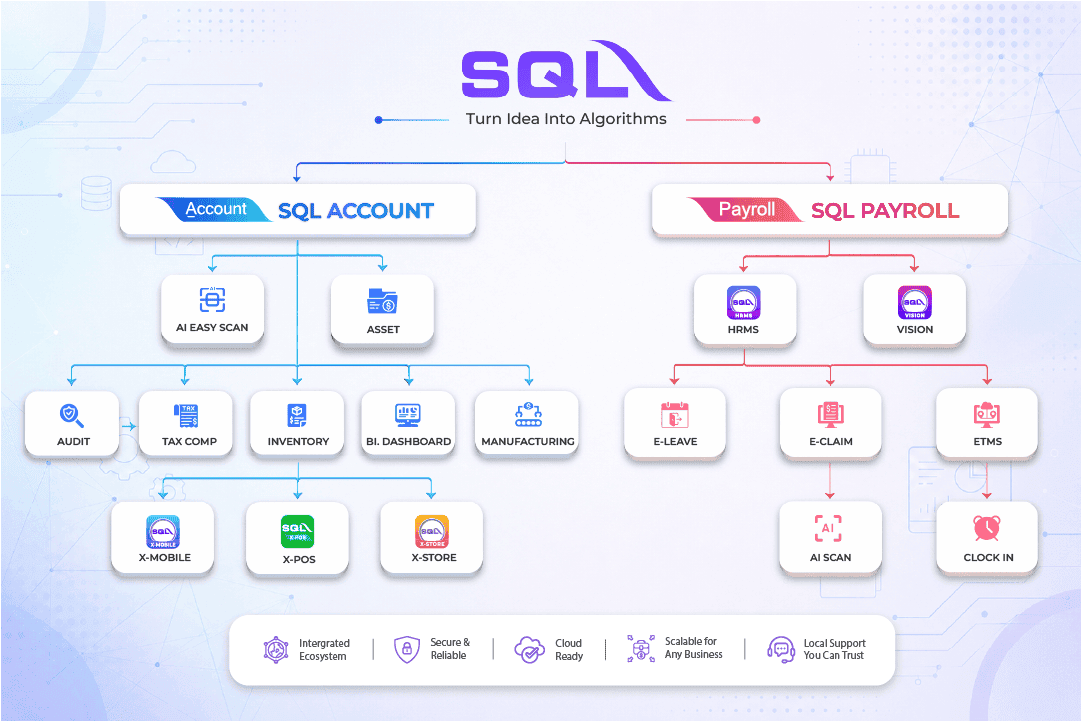
SQL Cloud Accounting is a cloud-based accounting software designed to help businesses manage sales, purchases, inventory, and financial reporting in one centralized system.
With real-time data access, secure cloud storage, and multi-device support, it enables SMEs, accountants, and growing businesses to work efficiently anytime, anywhere.
2. Can I keep my data after my cloud subscription expires?
Yes, you retain full ownership of your data.
You can download your SQL Account database to your desktop at any time, even after your cloud subscription expires and keep it for as long as required.
You can download your SQL Account database to your desktop at any time, even after your cloud subscription expires and keep it for as long as required.
LHDN Compliance
This supports compliance with LHDN record retention requirements, which mandate a minimum of 7 years of accounting record retention. 3. What is the difference between public cloud and private cloud?
SQL Cloud Accounting offers two deployment options depending on your business needs and preferences.
Public Cloud
A subscription-based service where your data is hosted on SQL’s servers and accessed via a web browser such as Chrome. It is fully managed and suitable for businesses that prefer lower upfront costs, faster setup, and remote access without managing IT infrastructure.
Private Cloud
A dedicated environment where your data is hosted within your own company. It involves a one-time setup fee with no monthly charges. This option provides greater control over your system, data, and server environment, but requires internal IT support, suitable hardware, and proper server configuration.
4. What are the requirements for a Private Cloud Server?
To ensure stable performance for SQL Connect Private Cloud Server, the following requirements are needed:
System & Server Requirements
- Wired Ethernet connection (recommended)
- Minimum 16GB RAM
- Windows 10 Pro (clean installation, version 1709 or above)
- No antivirus installed on the server machine
User capacity guideline
| Windows Version | User Capacity | Min. Ram |
|---|---|---|
| Wins 10 Pro 1809 and below | Up to 15 users | 16GB |
| Win 10 Pro 1903 and above | More than 15 users | 16GB+ |
Internet & Network Setup
- Fiber internet with minimum 300Mbps speed
- Router must allow TCP ports: 8122 and 8822
- DDNS setup must be prepared
- Fixed IP configuration for Windows required
- Router login ID and password must be provided
Hardware & Server Operation
- CPU virtualization must be enabled in BIOS
- Server is recommended to run 24/7 for best performance
- A reliable power supply (PSU rated 80+ or higher) is recommended
5. Are there any self-learning resources available
Yes, we provide a wide range of self-learning resources to help you get started and use the system effectively. Whether you are a beginner or an experienced user, you can learn at your own pace through our guides and tutorials.
Full Training Videos (English & Mandarin):
https://www.sql.com.my/online-training/#acc YouTube Channel (step-by-step tutorials):
https://www.youtube.com/user/SQLeStream XiaoHongShu (小红书) Updates & Tips:
SQLestreamhq SQL Wiki (Detailed feature explanations):
https://docs.sql.com.my/sqlacc/usage-category SQL Usage Guide (Setup & usage instructions):
https://docs.sql.com.my/sqlacc/usage-category 6. Is after-sales support included?
Yes, we provide 12 months of free software maintenance support after your purchase. If you encounter any issues, contact our support team directly.
Monday - Friday
9:00 AM - 6:30 PM
Saturday
9:00 AM - 1:00 PM
 03-7890 1300 (Support Line)
7. Is training available for users?
Yes, we offer free monthly online training for both SQL Account and SQL Payroll users. Our training sessions cover system setup, daily operations, and key features such as e-Invoicing to help you get started quickly and use the software effectively.
Register for Monthly Online Training
https://sql.com.my/events/#sql-e-invoice-training 8. Can I import my data from other accounting software or Excel?
Yes, data migration is supported. You can easily import your data using our Excel import templates, making it simple to switch from your current system.
For users of AutoCount and UBS Accounting, our system also supports direct data import, ensuring a faster and smoother transition with minimal manual work.
9. Can I switch from desktop-based to cloud-based later or vice versa?
Yes, you can switch between desktop and cloud versions anytime based on your business needs. No complex data migration is required
How It Works
Simply backup your database and upload it to our SQL server, and you’re ready to go. 10. Can SQL Accounting run on MacBook or Linux?
Yes, SQL Accounting software can be used on a MacBook or Linux device, but not as a native desktop application.
The desktop version of SQL Accounting is designed for Windows operating systems only and cannot be installed directly on macOS or Linux.
To use SQL Accounting on a MacBook or Linux, users need to access the cloud version through a web browser such as Chrome, Safari, or Microsoft Edge.
11. What are the system requirements for SQL Accounting Software
Hardware Requirements
- CPU: Latest Intel Core i5 or AMD Ryzen 5 and above
- Disk: 1TB Samsung 9100 Pro M.2 2280 PCIe NVMe SSD or compatible
- RAM: 32GB DDR4
HardwareOperating System Requirements
- Windows 10 Professional (64-bit)
- Windows 11 Professional (64-bit)
- Windows Server 2022 (Highly not recommended)
Recommendation
For better performance and stability, we strongly recommend using Windows 10 or Windows 11 Professional.
Details: Click here to understand the reason.
12. Can I Pay the Subscription Monthly?
No, monthly billing is not available. Our subscription plans are available:
- 6-Month Plan
- Annual Plan
13. Can SQL Accounting Software allow multiple users to access?
Yes, SQL Accounting supports multiple users.
Desktop Version
All users must be connected to the same local network (same Wi-Fi or LAN) to access the data stored on the server PC.
If the internet connection is interrupted, only the server PC will still be able to access the system.
If the internet connection is interrupted, only the server PC will still be able to access the system.
Cloud Version
Access is available through the internet from different locations and devices.
14. How is my accounting data stored?
Desktop Version
Your accounting data is stored locally on your company’s server or main PC.
Cloud Version
Your data is stored securely on SQL Server cloud infrastructure with backup protection and online access.
This allows users to choose the setup that best fits their business operations.